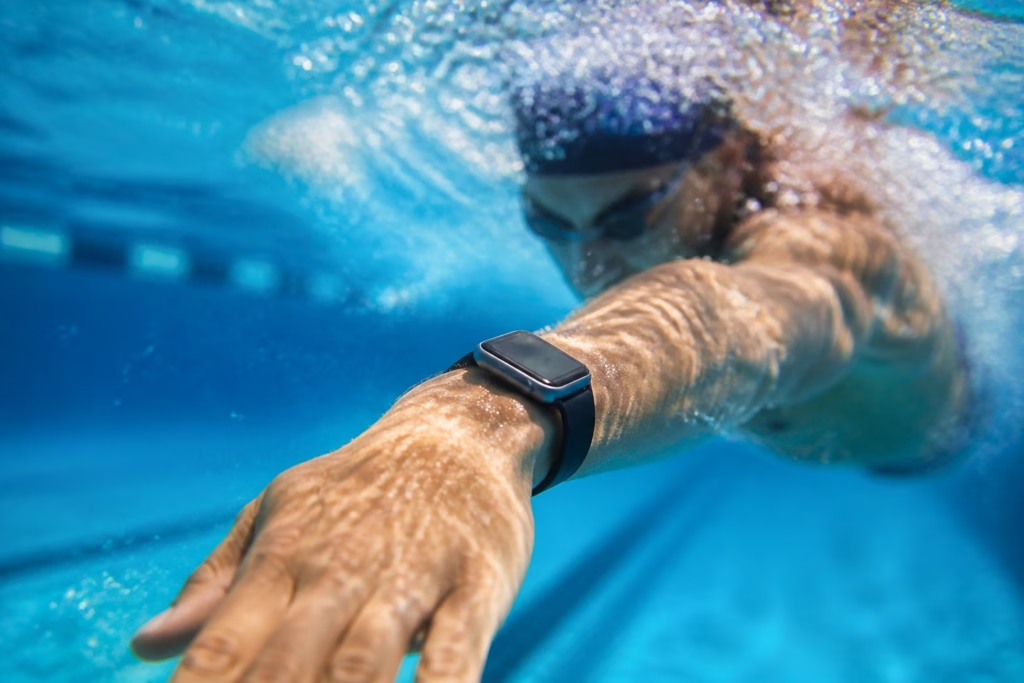
Whether you’re doing lengths at your local pool or braving the open water off the British coast, your Apple Watch can be one of the most capable swim trackers available. It counts your laps, detects your stroke type, measures distance, and logs calories, all from your wrist. The key to getting reliable swim data is knowing which settings to use before you dive in and how to care for your watch afterwards.
Swimming with an Apple Watch is straightforward once you understand a few basics: choosing the right workout type, using Water Lock, and setting the correct pool length. These small steps make a big difference to your tracking accuracy. If you’re already exploring swimming for fitness, technique, or stress relief, pairing your sessions with smart tracking can help you spot patterns, set goals, and stay motivated. Swimmers World has plenty of guides to help you get more from every session, so have a browse if you’re looking to level up your training.
This guide walks you through everything from pre-swim preparation to post-swim care, with practical tips that come from real pool-side and open water experience.
Before You Get In The Water
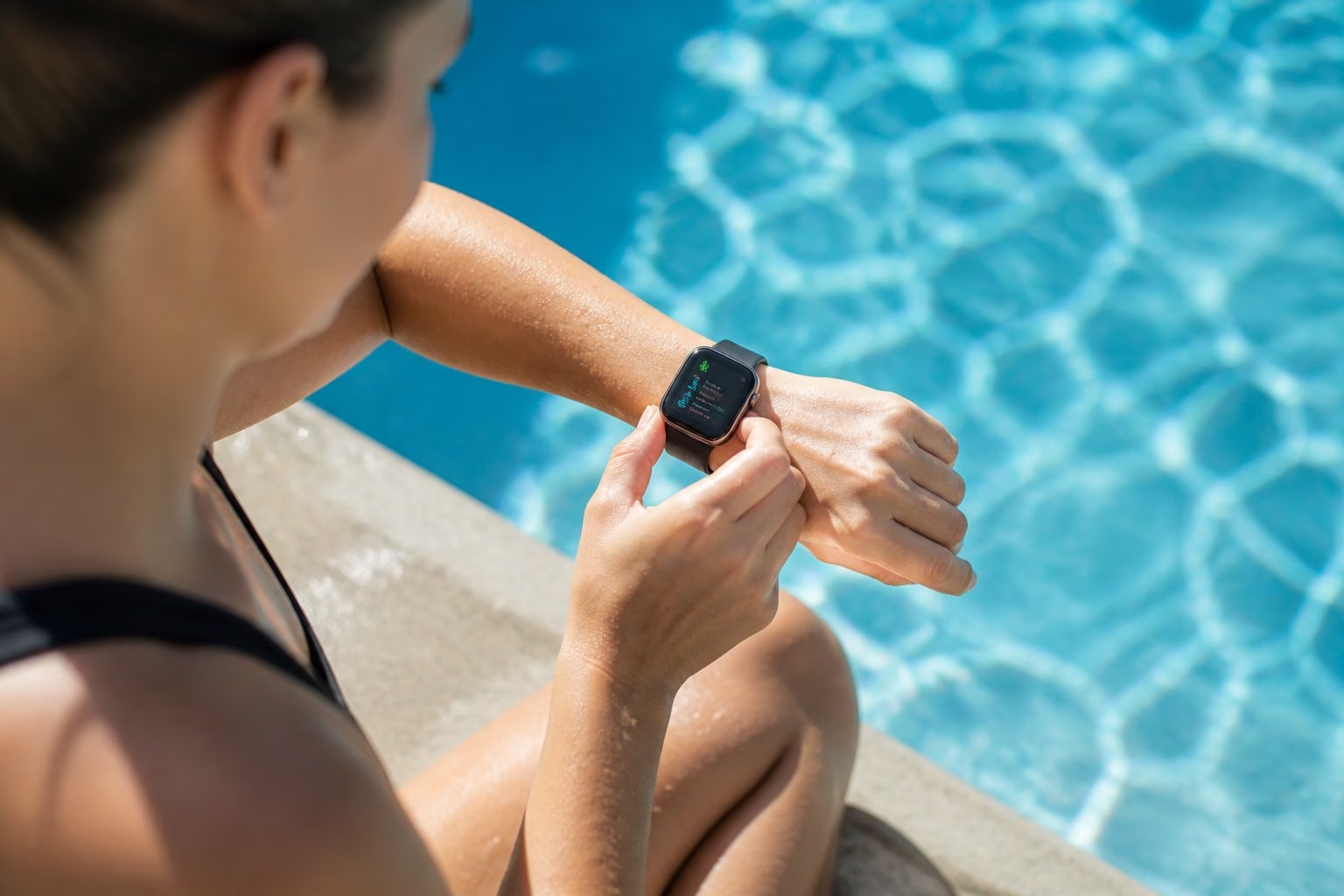
Not every Apple Watch handles water the same way, and understanding the difference between water resistance and waterproofing can save you from an expensive mistake. Choosing the right model, knowing the limits, and recognising when to leave the watch on the poolside are all important before you touch the water.
Which Apple Watch Models Are Suitable For Swimming
Apple Watch Series 2 and every model released after it carry a water resistance rating of WR50 under the ISO 22810 standard. This means they’re designed to withstand swimming in shallow water, including pool laps and light open water sessions.
The Apple Watch Series 8 and newer models, including the SE (2nd generation), continue to carry this WR50 rating. For serious open water swimmers, the Apple Watch Ultra line goes further. It’s rated to WR100 and compliant with EN 13319, which is the standard used for recreational dive accessories. That makes it suitable for deeper water activities and more demanding conditions.
Older models like the original Apple Watch (Series 0) and Series 1 are only splash-resistant. They should not be submerged.
Water Resistance Versus Waterproofing
Water resistance is not the same as waterproofing. Apple is careful to use the term “water resistant” rather than “waterproof” because resistance can degrade over time through normal wear, drops, and exposure to chemicals.
The WR50 rating means your watch can handle being submerged to about 50 metres under laboratory conditions. Real-world use is different. Impacts against the pool wall, sudden temperature changes, and contact with soaps or lotions can all reduce that protection.
Water resistance is not a permanent condition. It’s not something Apple will test or re-certify after purchase, either.
When Not To Wear Your Watch In The Pool Or Open Water
There are specific situations where you should leave your Apple Watch behind:
- Hot tubs and saunas: high temperatures and steam can damage seals.
- Water skiing, jet skiing, or high-velocity water sports: the force of impact exceeds what WR50 is designed for.
- Diving: unless you have an Apple Watch Ultra, avoid anything beyond shallow recreational swimming.
- Exposure to soaps, shampoo, or sunscreen: apply these well before putting your watch on, and rinse the watch with fresh water after every swim.
If your watch has taken a hard knock or shows signs of damage to the casing, it’s wise to stop using it in water until you’ve had it checked.
Starting The Right Swim Session
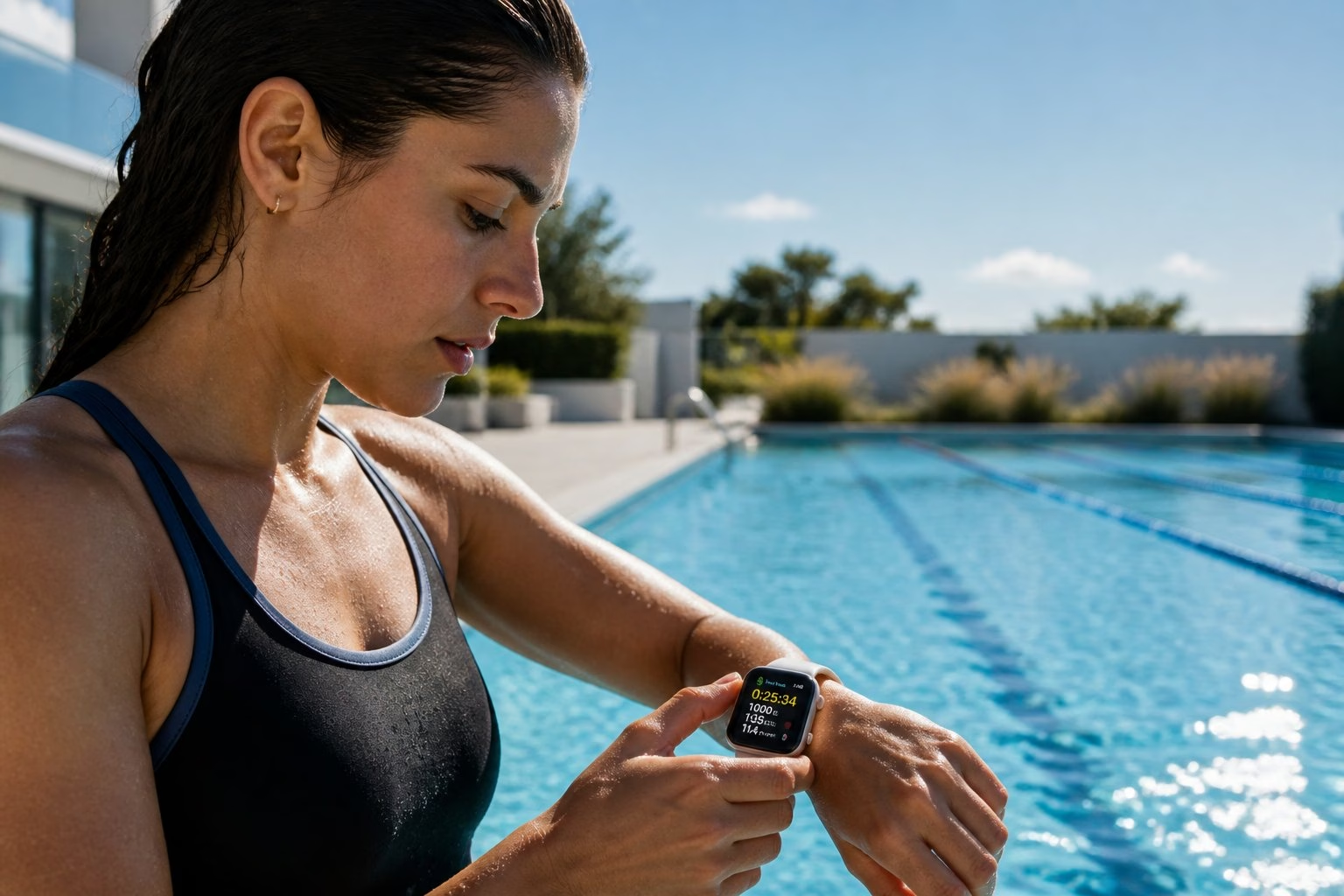
Choosing the correct workout type and entering accurate pool dimensions are two of the simplest things you can do to get better data. The Workout app offers both pool swim and open water swim modes, and each one tracks your swim workouts in a slightly different way.
How To Choose Between Pool Swim And Open Water Swim
When you open the Workout app on your Apple Watch, you’ll see two swimming options: Pool Swim and Open Water Swim. The distinction matters because each uses different sensors to measure distance.
Pool Swim relies on the accelerometer to count your laps. It detects your turns at the wall and multiplies your laps by the set pool length to calculate total distance. This method is very accurate in a standard pool.
Open Water Swim uses GPS to track your route and distance. Since there are no walls to count turns against, the watch plots your position as you move through the water. Choose this mode for lakes, rivers, the sea, or any body of water without defined lanes.
Selecting the wrong mode will give you unreliable numbers. If you use Open Water Swim in a pool, the GPS signal may be blocked by the building. If you use Pool Swim in a lake, the watch has no wall turns to count.
Setting Pool Length For Better Distance Tracking
Before starting a pool swim workout, your Apple Watch will ask you to confirm the pool length. Getting this right is critical for distance accuracy.
Most UK public pools are 25 metres, though you’ll also find 20-metre, 33-metre, and 50-metre pools. Some leisure centres even have unusual lengths like 18 or 22 metres. Check with your pool if you’re unsure.
To set the length:
- Open the Workout app and scroll to Pool Swim.
- Tap the three dots to access settings.
- Adjust the pool length to match your venue.
- Confirm and start your workout.
If the length is wrong by even a few metres, your total distance and pace calculations will be off for every single lap.
How To Track Swim Workouts In The Workout App
Once you’ve selected the right mode and set the pool length, simply tap to begin. The watch will automatically activate Water Lock to prevent accidental screen taps during your swim.
During your session, the watch tracks in the background. You don’t need to interact with the screen at all. To pause, press both the Digital Crown and side button at the same time. To end, press and hold the Digital Crown to unlock, then tap End.
Your swim summary will appear on the watch, and a more detailed breakdown syncs to the Fitness app on your iPhone. You’ll see stroke type, sets, rest intervals, distance, and pace.
Using Water Lock Properly
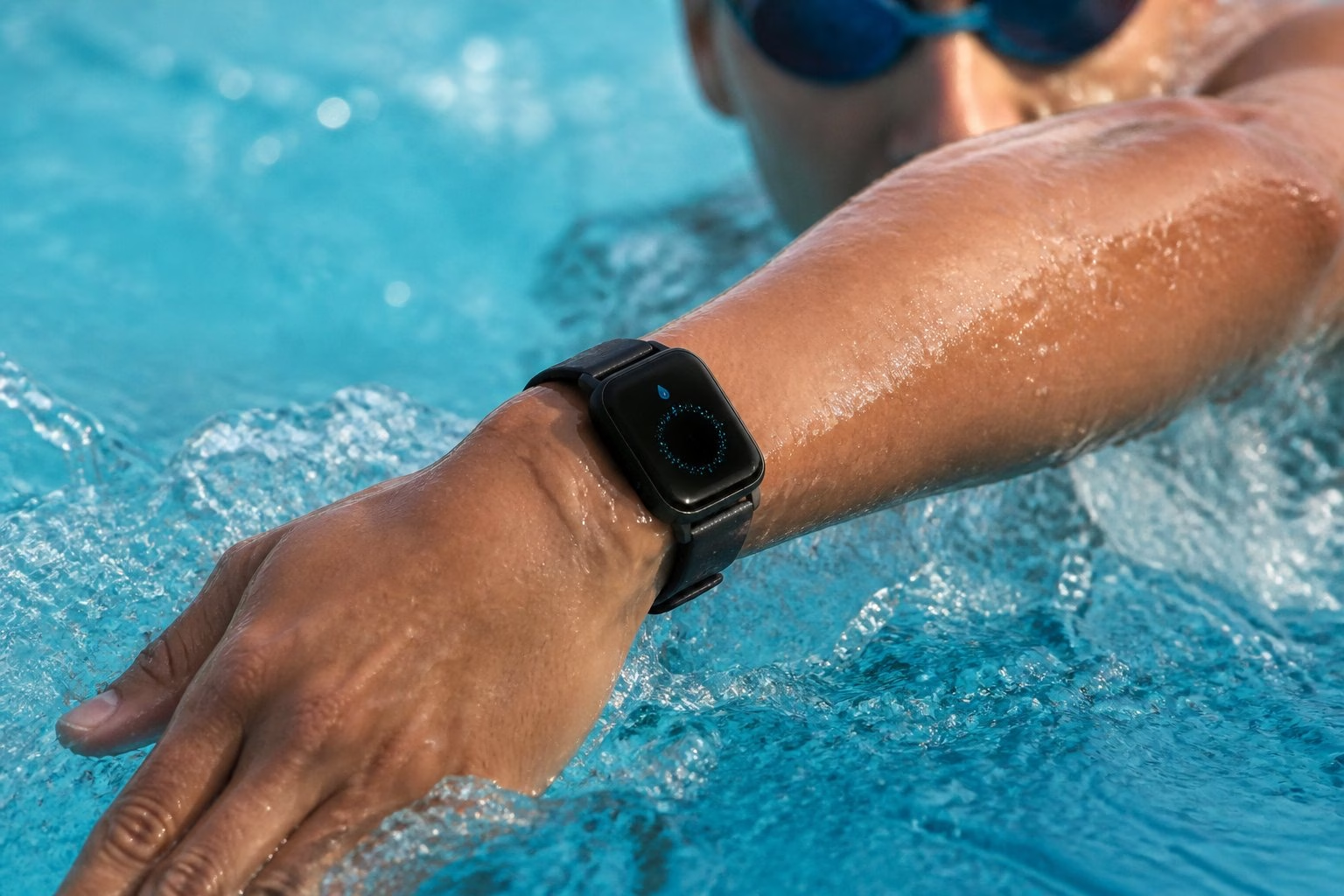
Water Lock is a simple but essential feature that protects your watch from accidental input while submerged. It also plays a role in clearing water from the speaker after your swim. Getting into the habit of using it correctly takes just seconds and prevents frustrating mid-session interruptions.
What Water Lock Actually Does
Water Lock disables the touchscreen on your Apple Watch. That’s its primary job. When water hits the display, it can register as taps, swipes, or presses, potentially ending your workout, opening apps, or even triggering emergency calls.
It does not create a physical seal or add any water resistance to the hardware. Your watch’s water resistance comes from its design and construction, not from a software feature. Think of Water Lock as a screen lock, not a water shield.
When you turn Water Lock off after swimming, the watch plays a series of tones that push residual water out of the speaker grille. You’ll feel a slight vibration and often see tiny droplets expelled. This is normal and by design.
How To Enable Water Lock
There are two ways to activate Water Lock:
- Automatically: when you start a swim workout in the Workout app, Water Lock turns on by itself. You don’t need to do anything extra.
- Manually: swipe up from the watch face to open Control Centre, then tap the water drop icon. This is useful if you’re entering water without starting a formal workout, like playing with the kids in a pool or wading at the beach.
A small water drop icon appears at the top of the screen to confirm Water Lock is active. Once enabled, the screen won’t respond to touch.
How To Unlock The Watch And Clear Water Afterwards
When you’re done swimming:
- Press and hold the Digital Crown until you see “Unlocked” on the screen.
- The watch will play a series of tones to eject water from the speaker.
- Your touchscreen returns to normal.
You may need to repeat the unlocking action if water remains trapped. A gentle wipe with a lint-free cloth afterwards helps. If the speaker sounds muffled, give it a few minutes to dry. Avoid poking anything into the speaker grille.
For extra protection during regular swim sessions, a snug-fitting swim-friendly Apple Watch case can add peace of mind, especially in rough open water.
What Your Watch Measures While You Swim
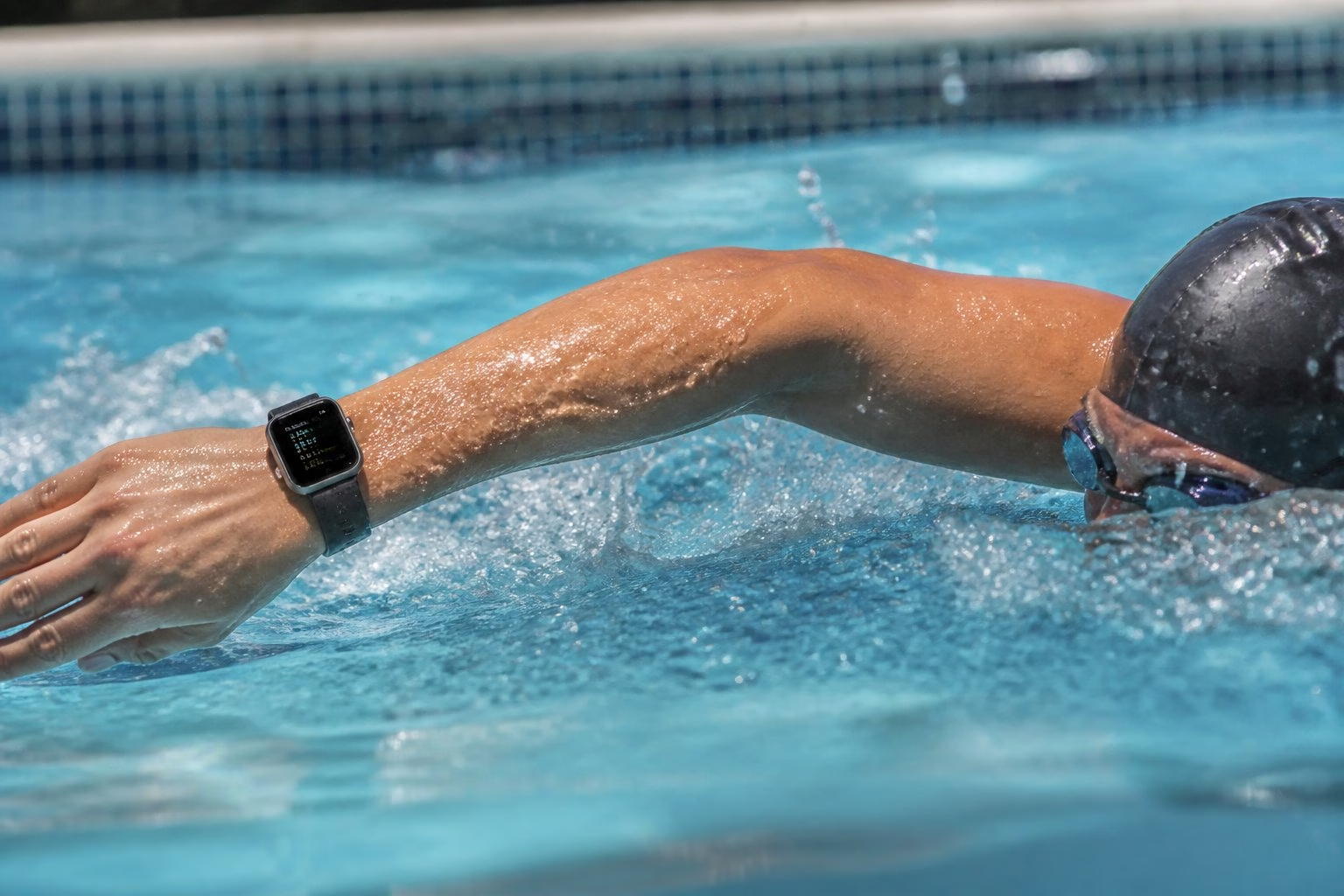
Your Apple Watch captures a surprising amount of detail during a swim. From individual lap times and stroke types to a composite efficiency score called SWOLF, the data available can genuinely help you improve. Pool and open water sessions produce different metrics, so it’s worth knowing what to expect from each.
How Lap Counting And Stroke Detection Work
In a pool swim workout, the Apple Watch uses its built-in accelerometer to detect the motion of your arm through the water. Each time you push off from the wall, the watch registers a new lap.
Stroke detection works by analysing the pattern and rhythm of your arm movements. The watch can distinguish between freestyle, backstroke, breaststroke, and butterfly. It labels each set with the stroke type it detects most frequently during that interval.
The accuracy is generally very good for steady, consistent swimming. Where it sometimes struggles is during drills, kick-only sets, or mixed-stroke lengths where the movement pattern is less predictable.
What Data You Can Review After The Session
When you end your workout, you’ll see a summary on the watch. The full details sync to the Fitness app on your iPhone, where you can review:
- Total distance and number of laps
- Average and best pace per 100 metres
- Stroke count per lap
- Stroke type for each set
- SWOLF score (a measure of swimming efficiency combining your time and stroke count for each lap)
- Active calories and total calories
- Heart rate data, including average and maximum
- Set and rest intervals (the watch auto-detects when you pause at the wall)
Reviewing this data over time is where the real value sits. You can spot trends in pace, efficiency, and effort across weeks and months of training.
Why Open Water Metrics Differ From Pool Metrics
Open water swim workouts use GPS rather than the accelerometer for distance. This means you’ll get a route map and total distance, but not individual lap counts or wall-based splits.
GPS signals can be interrupted when your wrist is submerged. The watch captures your position each time your arm surfaces during the stroke cycle, then fills in the gaps. This is reasonably accurate over longer distances but can be less precise over short swims or in choppy conditions.
You’ll also notice that SWOLF scores aren’t available in open water mode, since there are no fixed lap lengths to calculate against. Heart rate, stroke count, and calorie data still track normally.
How To Improve Accuracy And Reliability
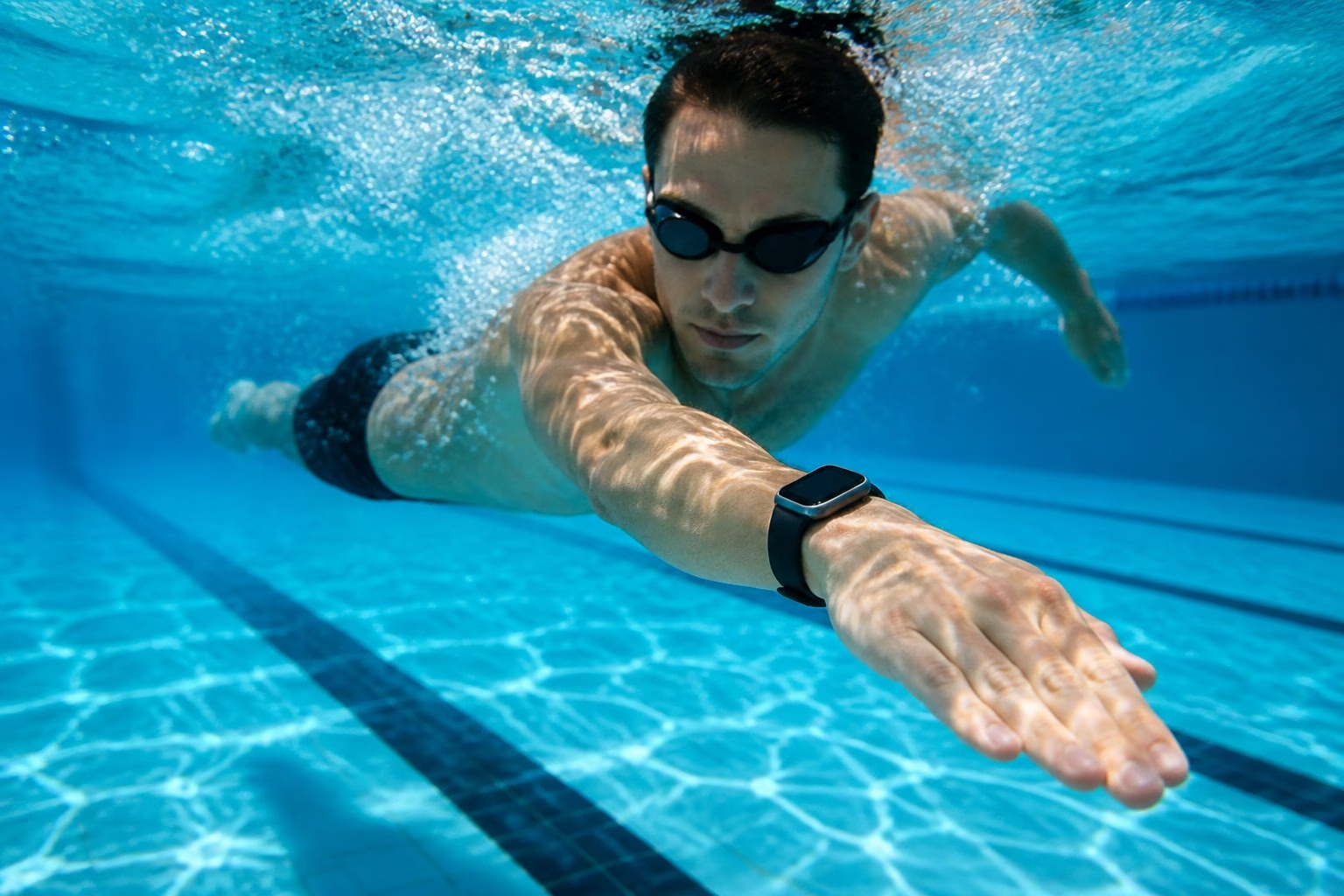
Small adjustments to how you wear and maintain your Apple Watch can make a noticeable difference to the quality of your swim data. Fit, technique, and post-swim care all play a part.
Getting The Fit Right On Your Wrist
The watch needs to sit snugly on your wrist to track accurately. A loose watch slides around during strokes, which leads to missed laps, inaccurate heart rate readings, and inconsistent stroke detection.
Wear it about a finger’s width above your wrist bone. The band should be tight enough that the watch doesn’t move freely, but not so tight that it’s uncomfortable. During swimming, you may want to go one notch tighter than you’d wear it day-to-day.
A good sport band designed for swimming is ideal. Avoid leather, metal link, and fabric bands in the pool. They absorb water, corrode, or loosen when wet. Silicone and fluoroelastomer bands handle chlorine and salt water far better.
Reducing Missed Laps, Pauses, And Drill Errors
If your watch regularly miscounts laps, a few things might help:
- Push off the wall cleanly. The accelerometer uses the turn to register each new lap. A weak push-off or a stop in the middle of the pool can confuse it.
- Swim full strokes where possible. Kick-only sets, pull buoy work, and single-arm drills often get miscounted or skipped entirely.
- Avoid touching the screen mid-swim. Even with Water Lock on, pressing buttons accidentally can pause the workout.
For structured sessions involving drills or mixed sets, some swimmers find it easier to log the main swim portion on the watch and track drill work separately.
Care After Chlorine, Salt Water, And Regular Use
After every swim, rinse your Apple Watch and band under clean, lukewarm tap water. This removes chlorine, salt, and any chemical residue that could degrade the seals or irritate your skin over time.
Dry the watch thoroughly with a soft, lint-free cloth. Pay attention to the area around the Digital Crown, the sensor on the back, and the band attachment points. If the Digital Crown feels sticky, hold it under running water while pressing and rotating it.
Never use a hair dryer, compressed air, or any heat source to dry your watch. Let it air-dry naturally. If you swim regularly, a protective case with built-in screen cover can help reduce the impact of daily chlorine and salt exposure on the casing.
Useful Apps And Accessories For Regular Swimmers
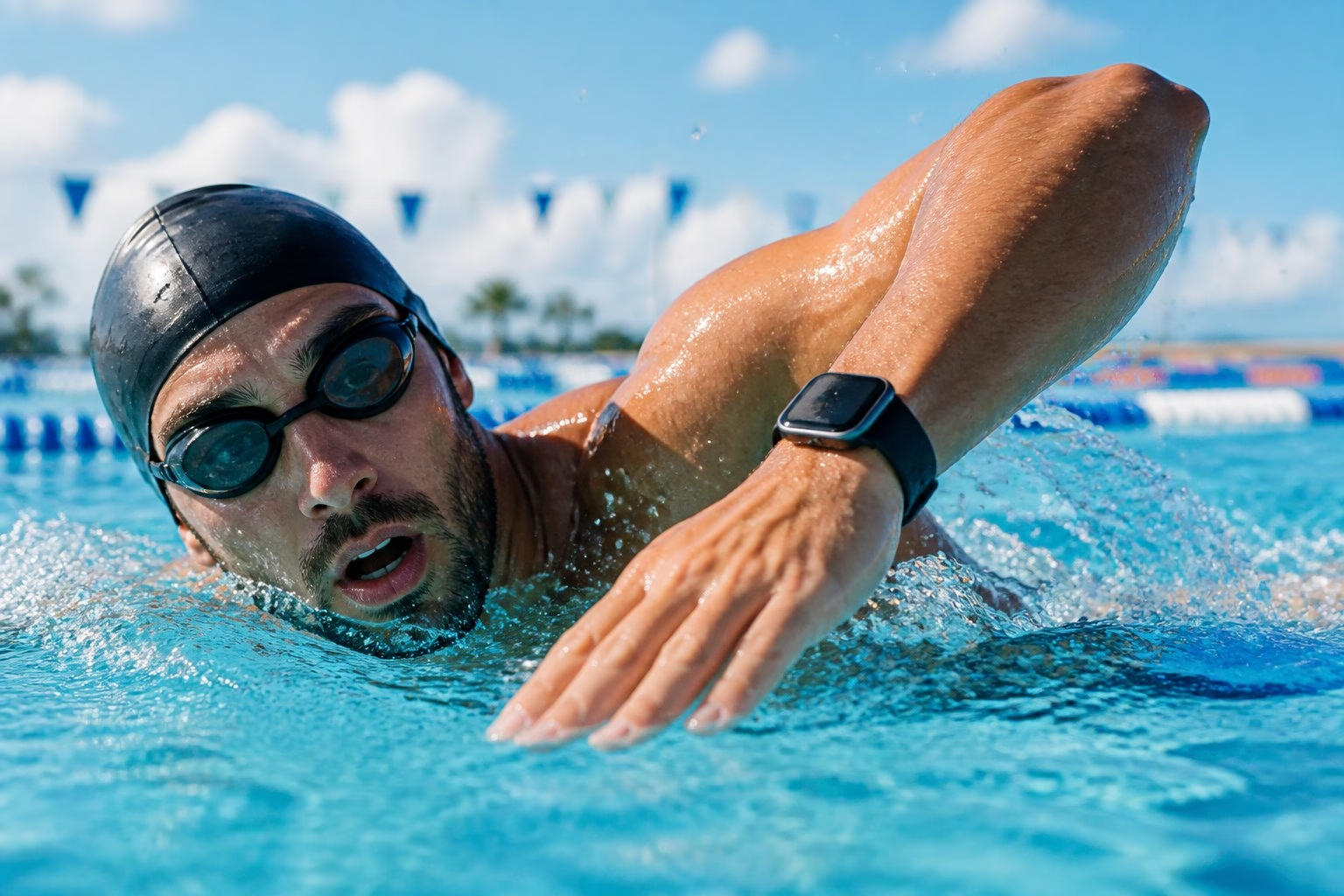
The built-in Workout app handles the basics well, but dedicated swimming apps and a few thoughtful accessories can take your training further. Choosing the right combination depends on whether you swim casually or follow a structured programme.
When The Built-In Workout App Is Enough
For most recreational and fitness swimmers, Apple’s native Workout app covers everything you need. It tracks distance, pace, stroke type, SWOLF, heart rate, and calories. It auto-detects sets and rest periods, and the data syncs neatly to your iPhone.
If you swim two or three times a week and simply want to log your sessions and watch your progress over time, there’s no pressing reason to add a third-party app. The built-in option is reliable, requires no subscription, and works without any setup beyond choosing your workout type.
Third-Party App Options For Training And Analysis
When you want structured workouts, detailed analytics, or coaching cues on your wrist, third-party apps become worthwhile.
- MySwimPro is one of the most popular swim workout apps for Apple Watch. It offers guided swim workouts, training plans, and detailed analytics. You can follow a plan tailored to your goals, whether that’s improving your 400m time or building endurance for open water.
- Swim.com provides a strong free tier with custom workout creation, interval tracking, and a community of swimmers sharing sets. Its Apple Watch integration gives you real-time interval data on your wrist.
Both apps offer more granular breakdown of your sessions than the native app, including stroke-by-stroke analysis and historical comparisons.
Bands, Cases, And Other Helpful Swim Accessories
The right accessories make a practical difference:
- Silicone sport bands: Apple’s own Sport Band works well, but more affordable third-party silicone bands dry quickly and resist chlorine without degrading.
- Protective cases: a slim waterproof Apple Watch case adds a layer of scratch and impact protection, especially useful in open water where you might bump against rocks or jetties.
- Anti-fog spray for goggles: not watch-related, but worth mentioning. Clear vision helps you swim straighter, which in turn gives your watch cleaner data to work with.
If you’re exploring gear choices more broadly, Swimmers World regularly reviews swim tech and accessories that pair well with a data-driven approach to training.
Frequently Asked Questions
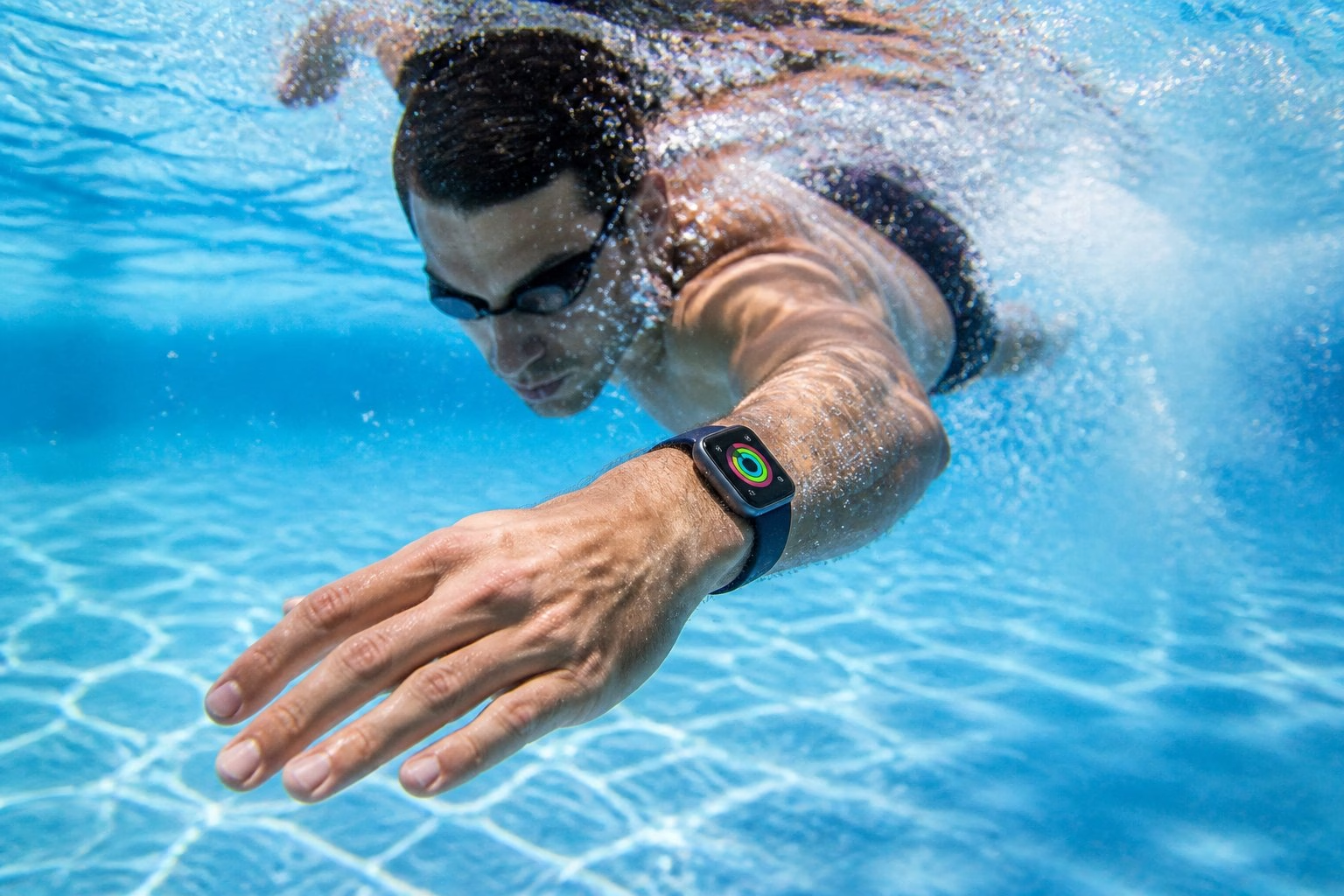
Can I wear my Apple Watch in a swimming pool?
Yes, Apple Watch Series 2 and all later models have a WR50 water resistance rating, making them suitable for pool swimming. Avoid wearing the original Apple Watch or Series 1 in the water, as they are only splash-resistant and not designed for submersion.
Do I need to enable Water Lock before getting in the water?
If you start a swim workout through the Workout app, Water Lock activates automatically. If you’re entering water without starting a formal workout, you should enable it manually through Control Centre by tapping the water drop icon. This prevents accidental screen inputs while the watch is submerged.
How do I prepare my Apple Watch for a swim and clean it afterwards?
Before swimming, make sure your band is snug, your pool length is set correctly (for pool swims), and Water Lock is active. After your swim, rinse the watch and band under clean tap water to remove chlorine or salt. Dry everything thoroughly with a soft cloth and let it air-dry completely.
Is it safe to use my Apple Watch in chlorinated or salt water?
Both chlorinated and salt water are fine for occasional and regular swimming sessions. Rinsing the watch with fresh water after each swim is essential to prevent long-term damage to seals, sensors, and the casing. Avoid exposing the watch to soaps, sunscreen, or other chemicals while in the water.
Which Apple Watch models are suitable for swim tracking and how accurate is it?
Apple Watch Series 2 through to the current Series 11, including SE models, all support swim tracking with WR50 water resistance. The Apple Watch Ultra offers WR100 for deeper water use. Accuracy for lap counting and stroke detection is generally very reliable during steady, full-stroke swimming, though drills and kick-only sets may be less accurately tracked.
What should I do if my Apple Watch speaker sounds muffled after swimming?
This is common and usually resolves on its own. When you turn off Water Lock by pressing and holding the Digital Crown, the watch plays tones specifically designed to eject water from the speaker. If it still sounds muffled, place the watch speaker-side down on a lint-free cloth and let it air-dry for a few minutes. Avoid inserting anything into the speaker grille.